Posts

Showing posts with the label LSMW

LSMW-Interview Questions With Answers-SAP ABAP-2.

7. What Is Data Migration & What Is The Significance Of Data Migration. State The Most Important Data Migration Tools Available In SAP? Data Migration stands for data transfer between two like or alike systems. During SAP R/3 implementation the data needs to be moved from legacy system to the SAP system. Sometimes periodic data transfer between R/3 and other system (interfacing) is also required. Both of the above form a part of data migration. Significance of data migration are: Data migration comes in the end of R/3 implementation. To start with Data Migration first configuration should be fully completed Data migration is about 20% to 40% of the total implementation expenses. The tools for data migration are:- BDC (Batch Data Communication) LSMW (Legacy System Migration Workbench) 8. What Are The Main Functions Of LSMW? The 3 main functions of the LSMW are: Reading the legacy data from one or several files (e.g. spreadsheet tables, sequential files). C...
LSMW-Interview Questions With Answers-SAP ABAP-1.

1. What Is LSMW All About? LSMW is a tool provided by SAP in order to upload huge amount of data from legacy file to R/3 system. The Legacy System Migration Workbench (LSMW) is a tool to transfer data from legacy systems (Non SAP System) into an R/3 System (SAP System). LSMW supports a step-by-step procedure; if one step is executed and saved then next step automatically follows. Apart from creation of project/ subproject/ object and recording, there are 14 basic steps included in LSMW. Through LSMW one can create Master data, create transactional data, modify existing master data etc. This tool is very useful when some mass changes are to be carried out and no standard SAP transactions are available for that. There are few standard objects available in LSMW e.g. material master, vendor master, customer master, purchasing info record, purchase requisitions, purchase orders etc. Using these standard objects one can do mass data upload and mass transactions. A part from thi...

Assigning A Transaction Code (T-Code) To A LSMW Object - 4.

Image
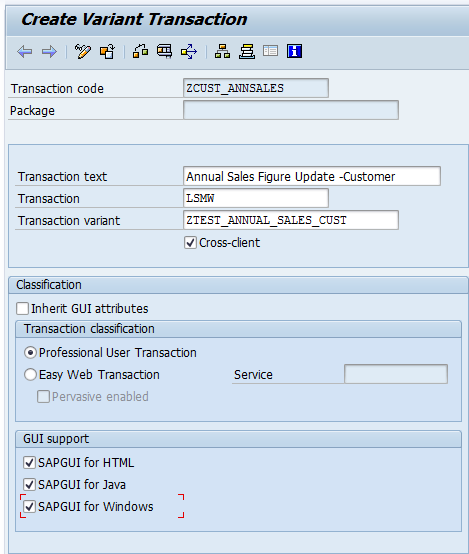
<< PREVIOUS PAGE                                                                                               STEP 3: Create Transaction Code Via SE93 Transaction code Go to SE93 transaction code. Enter any tcode name and then click Create button. A pop up screen appears. Select the radio button ‘Transaction with Variant’ and click ‘Enter’. Now Enter transaction Code ZCUST_ANNSALES and you will see a screen as shown below: Press Enter or execute it and you will see the following screen: ...

Assigning A Transaction Code (T-Code) To A LSMW Object - 3.

Image
<< PREVIOUS PAGE                                                                                               NEXT PAGE >> Click on deactivate functions. You get a pop up screen where one can change the interface variant. Double Click On the following items and click Continue as shown below: Click On Continue. Click on Save and then click On BACK button. Enter the transaction as LSMW and the transaction variant as created in step 2 above....

Assigning A Transaction Code (T-Code) To A LSMW Object - 2.

Image
<< PREVIOUS PAGE                                                                                             NEXT PAGE >> Come back to transaction Code: SHD0. Go to Screen Variant Tab and click on 'In Transactions Variant'. Program Name and Screen number gets filled up automatically. STEP2: Create Transaction Variant In the same transaction code SHD0, Go To 'Transaction Variant' Tab. Enter any name in 'Transaction Variant' name & then Click on Insert Row as shown below: Add the screen variant name creat...

Assigning A Transaction Code (T-Code) To A LSMW Object - 1.

Image
Step 1: Create Screen Variant. Go to SHD0 transaction code. Enter Transaction code as LSMW. Next go to ‘Screen Variants’ tab and enter any name as shown below: Click On create button. You will be asked to enter the Project/Subproject/Object name of the LSMW object for which tcode has to be created. Once you enter the details press 'ENTER button' to proceed. A pop up screen appears. Here you have to enter the Screen Variant Name & Description. Also tick the check boxes in ‘W.content’, ‘Output only’ and ‘Required’ columns. Once you are done with all these steps, click on ‘Exit and Save’ button as shown below: A new screen will appear. On saving you will be asked to enter the package name and the transport request. Fill them up and return back to the initial screen.                               ...

LSMW (Legacy System Migration Workbench) - Introduction & Importance.

INTRODUCTION - LSMW  -- LSMW is a tool provided by SAP in order to upload huge amount of data from legacy file to R/3 system. -- The Legacy System Migration Workbench (LSMW) is a tool to transfer data from legacy systems (Non SAP System) into an R/3 System (SAP System). -- LSMW supports a step-by-step procedure; if one step is executed and saved then next step automatically follows. -- Apart from creation of project/ subproject/ object and recording, there are 14 basic steps included in LSMW. -- Through LSMW one can create Master data, create transactional data, modify existing master data etc. This tool is very useful when some mass changes are to be carried out and no standard SAP transactions are available for that. -- There are few standard objects available in LSMW e.g. material master, vendor master, customer master, purchasing info record, purchase requisitions, purchase orders etc. Using these standard objects one can do mass data upload and mass tra...